
Paragraphs Examples for Content Pages
Accordion
General questions posted on Headline are answered here. In this case, the answer to question 1 should be here. The answers are inserted into the text and can be displayed in the in-page navigation. To do this, enter one or two words in the in-page navigation area, which will then be displayed in the bar on the right-hand side of the finished website. You can then click on these and you will be taken directly to the selected content. However, the headline does not necessarily have to contain a question. It can also contain a generic term to make reading easier for the reader.
Instead of text, an image can also be inserted into an accordion item.
General questions posted on Headline are answered here. In this case, the answer to question 2 should be here. The answers are inserted into the text and can be displayed in the in-page navigation. To do this, enter one or two words in the in-page navigation area, which will then be displayed in the bar on the right-hand side of the finished website. You can then click on these and you will be taken directly to the selected content. However, the headline does not necessarily have to contain a question. It can also contain a generic term to make reading easier for the reader.
Instead of text, an image can also be inserted into an accordion item.
General questions posted on Headline are answered here. In this case, the answer to question 3 should be here. The answers are inserted into the text and can be displayed in the in-page navigation. To do this, enter one or two words in the in-page navigation area, which will then be displayed in the bar on the right-hand side of the finished website. You can then click on these and you will be taken directly to the selected content. However, the headline does not necessarily have to contain a question. It can also contain a generic term to make reading easier for the reader.
Instead of text, an image can also be inserted into an accordion item.
A collage is shown here. Here, too, you can add the collage to the in-page navigation. In the collage, text is inserted that matches the image, which is also added. The image can be displayed on the right or left. You can select this in the image position by clicking on the arrow. Suitable buttons can be added here. Here, the image is displayed on the right and the text on the left.
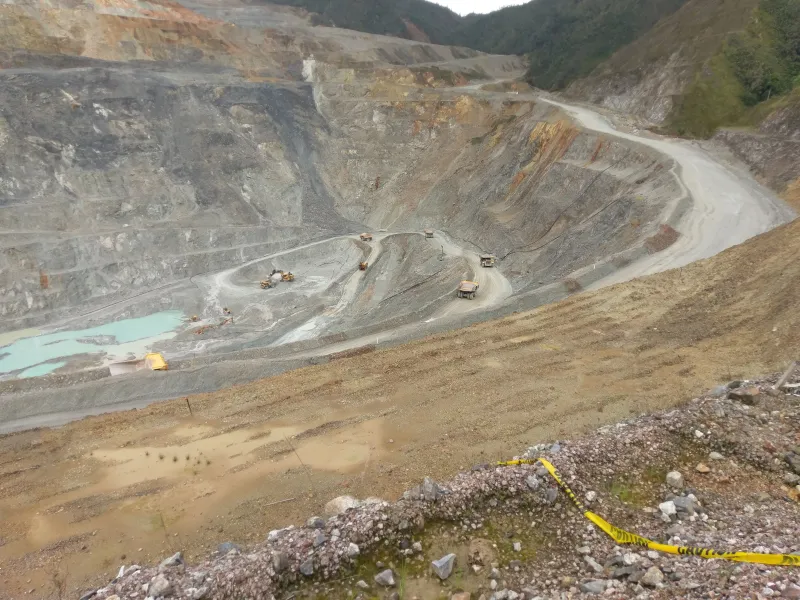
A collage is shown here. Here, too, you can add the collage to the in-page navigation. In the collage, text is inserted that matches the image, which is also added. The image can be displayed on the right or left. You can select this in the image position by clicking on the arrow. Suitable buttons can be added here. Here, the image is displayed on the left and the text on the right.

With block references, you can insert teasers, which are then inserted into the finished website. This can also be displayed for in-page navigation. The block reference is shown below.


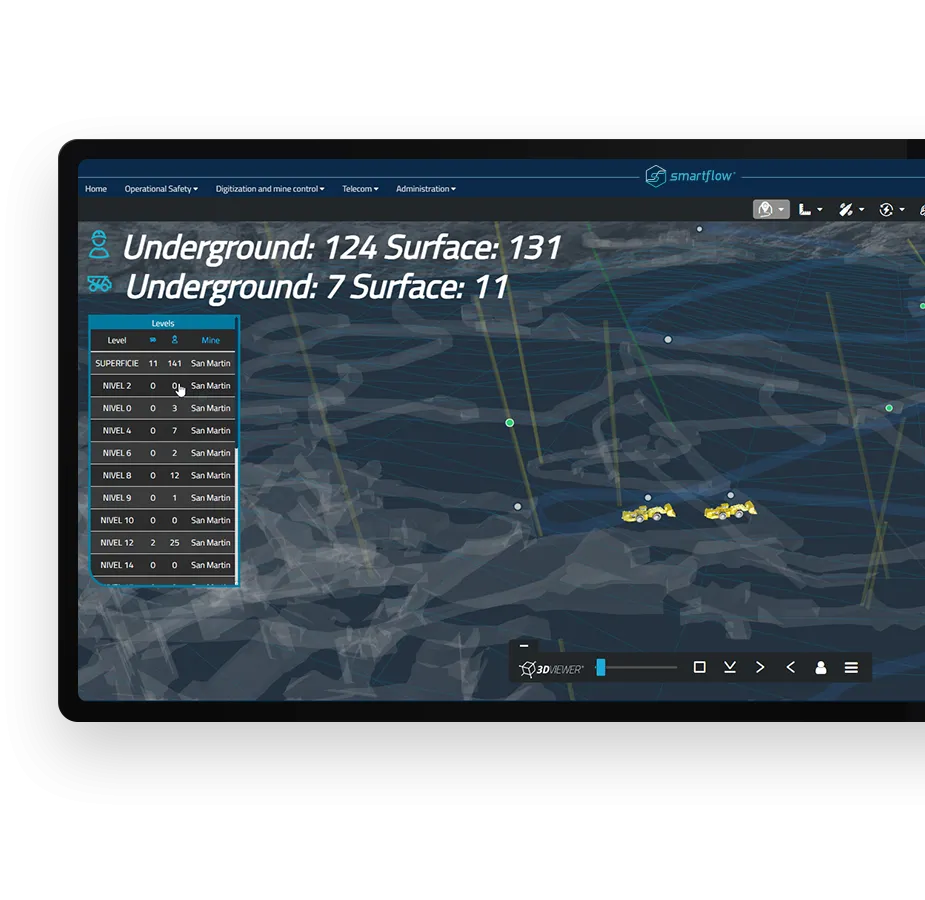
Benefit box

umbrella term 1
For the Benefit box, a generic term is entered in the Title field, which is summarized in the Description field. An icon is inserted as an image that matches the generic term and has been used previously for the same generic term or has not yet been used for another term.
umbrella term 2
For the Benefit box, a generic term is entered in the Title field, which is summarized in the Description field. An icon is inserted as an image that matches the generic term and has been used previously for the same generic term or has not yet been used for another term.
umbrella term 3
For the Benefit box, a generic term is entered in the Title field, which is summarized in the Description field. An icon is inserted as an image that matches the generic term and has been used previously for the same generic term or has not yet been used for another term.


Poster
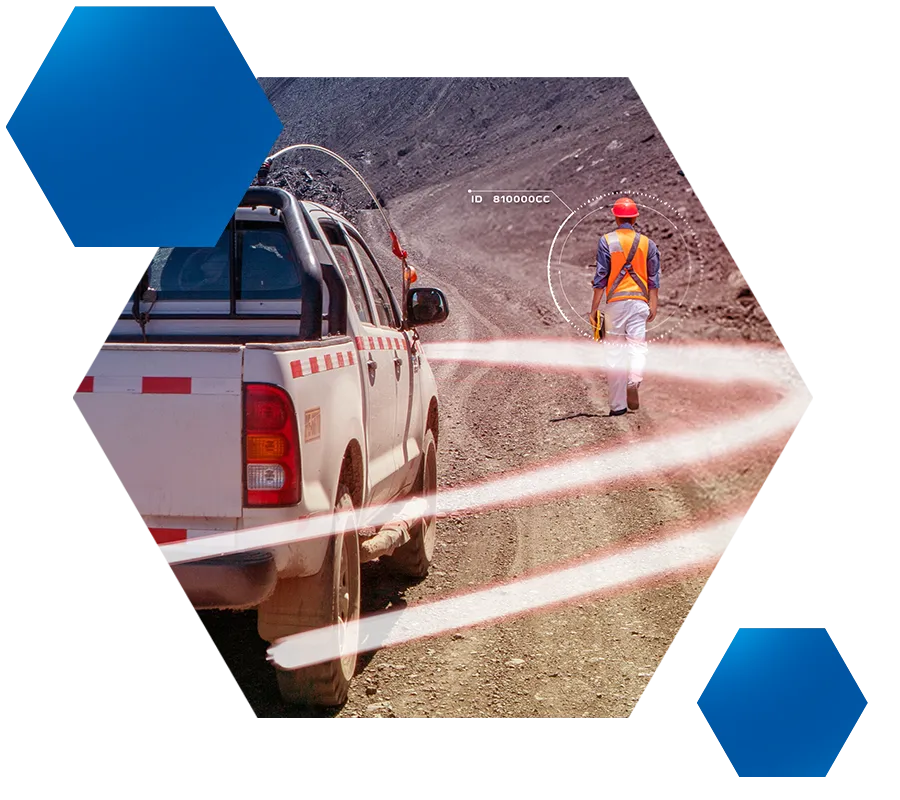
You can choose a background for the poster, but you don't have to. An image must be inserted above the background. Text will be displayed above the image on the finished website. A headline is also inserted here, and in-page navigation can be added. If you want, you can also insert buttons here, which will be displayed below the image.




key fact 1
fact text 1
key fact 2
fact text 2
key fact 3
fact text 3
key fact 4
fact text 4
key fact 5
fact text 5
key fact 6
fact text 6
key fact 7
fact text 7
key fact 8
fact text 8
Seperator right
The separator is displayed in the background as a gradient. The gradient can start from the right or from the left. In this case, it starts from the right.


Marc Becker
An image must be added to the person list, ideally a picture of the person in question. The person's name is also entered in the Full name field. Finally, important information about the person is entered in the information field.
Chief Executive Officer Becker Service GmbH, Germany

Jonas Maximilian Becker
An image must be added to the person list, ideally a picture of the person in question. The person's name is also entered in the Full name field. Finally, important information about the person is entered in the information field.
Chief Executive Officer Becker Mining Europe GmbG, Germany

David Pitkin
An image must be added to the person list, ideally a picture of the person in question. The person's name is also entered in the Full name field. Finally, important information about the person is entered in the information field.
Chief Executive Officer Becker Mining Australia Pty Ltd, Australia

Prof. Dr. Franz Becker
An image must be added to the person list, ideally a picture of the person in question. The person's name is also entered in the Full name field. Finally, important information about the person is entered in the information field.
Chief Executive Officer Becker Mininge Systems AG
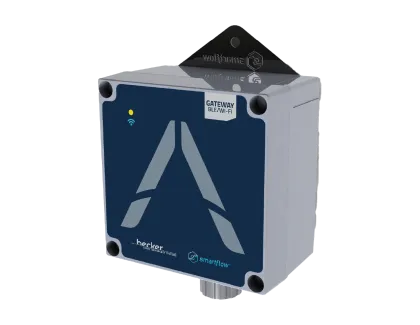




Curabitur laoreet
The timeline appears slightly faded on the website. An image and an icon image are added here. The year and a description are also specified. This timeline can be given a title and can be added to the in-page navigation.